
Back in Charlottetown. Five hours to sleep. Then back to Montreal. How do the shuttle diplomats manage it?
Having just spent three months immersed, in addition to my normal everyday immersions, in the world of Prince Edward Island elections, our visit this week with our colleagues at Elections Canada is kind of like being called up to the bigs after playing minor ball for a season. Or at least invited to coffee with the bigs. A really involved coffee, where everyone talks about address matching, geocoding, PDs and FEDs and CRTs.
Which is not to say that the minor ball played in Prince Edward Island isn’t all a man could ever ask for. But here in the bigs, everything is, well, just so much bigger.
My most daunting challenge of the day was to figure out that, because of the scale of their operation here (i.e. 50,000-odd polls in Canada vs. 296 polls in PEI), there is great, necessary, division of labour.
On Prince Edward Island, Provincial elections are managed by a permanent staff of three. Plus me, the contract programmer. And, during the election, a healthy number of returning officers, data entry staff, poll clerks and so on.
But on issues of technology, there is, ultimately one decision maker, and one implementor. This doesn’t scale well, I admit. And it does tend to make life as the implementor, during the election period, rather full. But man oh man does it make things simple.
With scale comes the need to build pyramids of people, and chains of responsibility. Being used to living in a flat landscape, the world of pyramids is challenging to get used to. It’s not impossible; it simply means making my head think a different way. And it means understanding that the myriad little conversations I have with myself actually happen out in public here.
The flip side of this complexity ramp-up is that the people I’ve been meeting here are all super-smart experts on their piece of the divided labour pie. It’s thrilling (especially for an inquisitor like me) to spend time with such people, if only because it gives me the ability to talk with people who not only understand, and are compelled by, the same weird election stuff I am, but who have thought through many of the same issues, on a national level, with the resources to take different solutions and approaches out for a real ride.
We had a long and interesting day here today. We’re out to dinner tonight, and then back at it tomorrow. I’m going to try and hook up with my old friend Tim Wayne for lunch before we head back to the Island just after supper. Then it’s back in the air to Montreal for the weekend with Oliver.
Must rest my mind now…
🗓️
I went out today to buy a new pair of pants. The year-old frayed at the edges pair of L.L. Bean chinos I’ve been wearing of late are fine for Prince Edward Island, but I’m flying up to Ottawa this afternoon and such pants aren’t Ottawa-compatible.
Catherine’s only charge as I headed out the door was “don’t buy pants with pleats.” She didn’t care if I bought yellow pants, red pants, green pants or wire mesh pants, as long as they were pleatless.
Truth be told, although I have passing familiarity with pleats, I couldn’t tell you which, if any, in my current stable of pants are pleated. Catherine can. Apparently when I wear pleated pants I “look like an old man.” This is not a good thing in Catherine’s eyes, so presumably it means more “disheveled louse” than “elder statesman.”
So I headed out to Dow’s, one of two remaining mens clothing stores in downtown Charlottetown, and the only one that sells products styled before 1962 (see here for details).
I walked through the $175 pants section (who buys $175 pants anyway?) to the “relaxed casual” section, and tried to find pleatless pants. In vain.
I went in search of a clerk, and he helped me search. He found two pairs of pleatless pants in their entire stock, one light beige and the other dark blue, both colours I try to avoid at all costs.
On my way out the door, I made a comment about how I’m obviously behind the times, and that the entire world has gone pleated. “No,” said my salesman, “pleats are on their way back in.”
So, apparently, I’m actually ahead of the curve on this one! Thanks be to Catherine for keeping me in the right place on the fashion calendar.
I phoned Catherine. “Are you *sure* about the pleats?”, I asked. “Yes, I’m sure,” she replied, “no pleats!”.
As a last ditch effort, I went up to the Kettle Creek, oops, I mean “K&C” store on the second floor of the Confederation Court Mall. I ended up buying a pair of Columbia-brand pants which are appointed as if I was going to use them to climb mountains, with various subtle grappling hooks and secret pockets. They’re a little to long (I have a 33 inch leg, which is almost impossible to find in a pant outside of Milan). But they have no pleats.
I’m wearing them right now. I’m going to wear them to Ottawa. And I’m equipped to climb any mountains, ford any streams that come up along the way.
Now, I’ve got to go and tuck Morley into bed, feed the dog, and make sure all the lights are off down at the record store…
🗓️
Daniel Burka, resident aesthete at silverorange, opened his weblog today. It offers may intricate layers of well-positioned goodness. Welcome!
🗓️
Perry Williams, videographer, designer, musician, arranger, writer, comedian and slate floor expert has a newly designed website that’s a paragon of elegant simplicity.
Between Perry’s Virtual Studios, Barrett & MacKay Photography, and Karin LaRonde’s good food, you could probably make a pleasant life in St. Catherines, PEI, and never cross the bridge to civilization.
Widen the net a little to include Herb at Meadowlaine for your home renovation and kitchen counter needs, Brian Landry for consulting services, Paul Baglole for publication design, and Kevin O’Brien for your networking needs, and you start to realize that the other side of the North River Causeway can pretty well stand on its own.
🗓️
I believe I may be the world’s biggest Jane Siberry fan.
Or at least I’m in the top 100. Let’s just say that when I’m done changing Oliver’s diaper, and want him to stand up from the changing table, I say “Stand up Mimi!”
So today is an important and exciting day: her new album, Shushan the Palace (Hymns of Earth) arrived in the mail today.
This ain’t no Mimi on the Beach: it’s subtitled “Centuries-old Hymns by Handel, Bach, Mendelssohn-Bartholdy, Rossetti, Holst, et al.”
I’m listening right now. It’s wonderful.
🗓️
The new Bruce Rainnie-Kevin “Boomer” Gallant host-weatherman relationship is in its early days, obviously — tonight was their second night together. But already there are danger signs: it’s imperative that Bruce not attempt to out-Boomer Boomer with the witty quips and awkward puns.
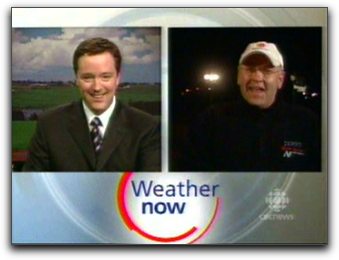
For the relationship to prosper, Bruce must play the straight man — the Hardy to Boomer’s Laurel, the Jerry to Boomer’s George, the Desi to Boomer’s Lucy.
There’s not room for two playful buffoons on Compass, and while Bruce need not play things dour, he’s got to play with the wry, bemused comeback, not the pre-emptive outpun.
Stay tuned.
🗓️
Back in January of 2001, I wrote about a review I’d done of a Ron Sexsmith cassette for a zine called Ear Meat. This morning I found that issue in the archives, and I present it here:
Ron Sexsmith - There’s A Way - I was hit with this image of dead cows mired in thick, gelatinous mud trying their hardest to play like Corey Hart but, with their limited lounge-lizard past, only able to come up with Cousteau-sounding bubble-rock. One exception is the drumming, obviously programmed, which overpowers everything with an annoying military beat: that’s okay, though, because what it overpowers isn’t all that better, anyway. Good music to listen to while scuba-diving or mowing your dog.
As you can see, I presaged Ron Sexsmith’s meteoric rise to fame rather well.
The review comes from Ear Meat 6, edited and published by Joanna Rogers. The issue is undated, but if memory serves it was published in or around 1986.
🗓️
Here are some pictures from the 1978 Carlisle Bluegrass Festival. I wrote about the festival last year. I was 12 years old in 1978, which means I was probably selling newspapers somewhere in the background of those pictures.
And here’s some Carlisle village history. The two schools in Carlisle, Victoria built in 1922 and Balaclava built in 1958, are both gone now. Victoria was torn down, and sits as a vacant lot; I went there for grades 4, 5 and 5. Balaclava, where I did grades 2 and 3, was replaced by a sleek modern school sometime in the last 20 years.
I used to deliver the paper to Mrs. Howard Green (mentioned in the section on Progreston), and also did some yard work for her. She used to give me orange pop and cookies when we took a break.
She lived across the street from what we used to call “the dam,” which is pictured here. There’s a railway bridge over the dam, and Len Taylor climbed up there in 1978 and spray-painted his name in white paint. It’s still there.
🗓️
I like James Taylor’s music as much as the next guy, but I was suddenly struck by the thought tonight, while watching Everwood, that for popular culture to make any significant leaps forward it may be required that James Taylor’s music stops being played or interpreted completely. Yes it will be hard. But all growth requires sacrifice.
🗓️
About This Blog
 I am Peter Rukavina and this is my blog. I am a writer, letterpress printer, and a curious person.
To learn more about me, read my /now, look at my bio, listen to audio I’ve posted, read presentations and speeches I’ve written, see things I’ve favourited elsewhere, or get in touch (peter@rukavina.net is the quickest way).
I have been writing here since May 1999: you can explore the 25+ years of blog posts in the archive.
 You can subscribe to an RSS feed of posts, an RSS feed of comments, an RSS feed of favourites elsewhere, or a podcast RSS feed that just contains audio posts. You can also receive a daily digests of posts by email. I also publish an OPML blogroll.
Instagram • YouTube • Vimeo • ORCID • OpenStreetMap • Internet Archive • PEI.art • Drupal • Github.