
We’re in the middle of the second year of online bidding for the Prince Street School Silent Auction and it seems like a good time to peel off a little more of the wrapping and talk about the technical side of the process so that others can do the same thing (I took a first stab at this last year with just the basics).
The Silent Auction is run through a slightly-modified Drupal website: the modifications that support the auction are not dramatic, and should be within the realm of anyone with some basic Drupal savvy. Here’s what I did.
Install some Drupal Modules
- CCK
- Views
- FileField
- Formatted Number CCK
- ImageField
- ImageCache
- PathAuto
- String Overrides
- CAPTCHA
- reCAPTCHA
Set up some ImageCache Presets
I created two ImageCache presets:
- display – scale to width 500 pixels
- thumbnail – scale to height 150 pixels
I’ll use the display preset when I want to display the full-sized image and the thumbnail preset when I’m displaying a list of items with thumbnail images.
Create a Silent Auction Item Content Type
We need to keep track of a few additional items for each auction item in addition to the title and description that a standard Drupal node supports. So I installed the CCK module and created a new content type called Silent Auction Item.
I set up the content type with comments turned on, newest comments displayed first, allowed anonymous comments (but checked Anonymous posters must leave their contact information) and set comments to display Display below post or comments.
Next I added three new fields to the Silent Auction Item content type:
- Item Number – field_itemnumber – Integer
- Donated By – field_donatedby – Text
- Estimated Value – field_value – Formatted decimal
- Photo – field_photo – File
The result looks like this:
.png)
Finally, I set the Display Fields settings for the new content type so that:
- Item Number field is excluded – we use this for internal purposes only.
- Donated By and Estimated Value have their labels displayed in-line.
- Photo is displayed as thumbnail image linked to node for the Teaser and as display image for the Full Node.
Create a Silent Auction Categories Taxonomy
To allow auction items to be categorized, I created a new Silent Auction Categories taxonomy, and added some terms:
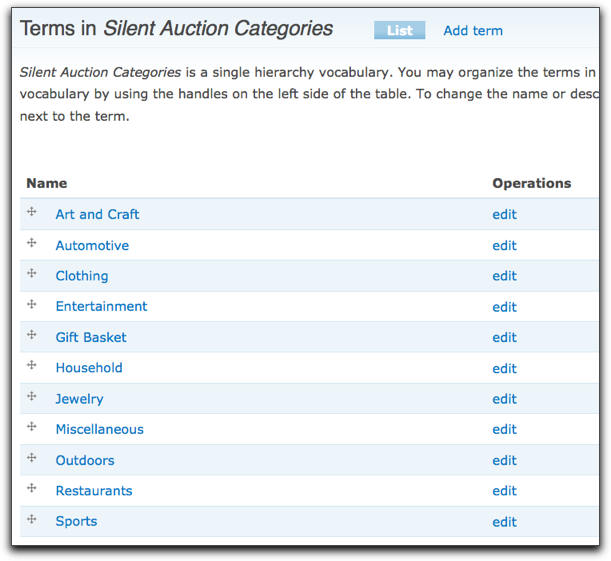
I set this new Taxonomy to apply to the Silent Auction Item content type I created earlier.
Add some Silent Auction Items
Next I was ready to add some actual content to the site, so I started adding Silent Auction items using the regular Drupal Create Content mechanism. For each item I entered the Item Number (assigned manually when the item was received at the school), the title of the item (“Goalie Stick”), a category (“Sports”), a description (if I was given one), who the item was donated by, and its estimated value. I then uploaded a file (taken by the school secretary and sent to me as a JPEG) and saved the new item.
The result was something like this:

Turn “Comments” into “Bids”
With the content pretty well taken care of, now I turned my attention to setting up a way for people to bid on the items. I decided that rather than building out a more complicated dedicated Drupal module for this, I’d simply harness the already-in-place Drupal comments system and turn it into a “bids” system.
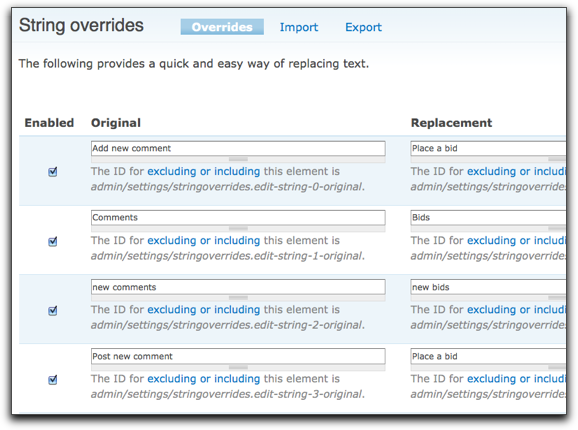
First I made some entries in the String Overrides module’s settings, changing appearances of the “comments” terminology to “bids.” I made the following entries:
- Add new comment became Place a bid
- Comments became Bids
- New comments became New bids
- Post new comment became Place a bid
Setup reCAPTCHA
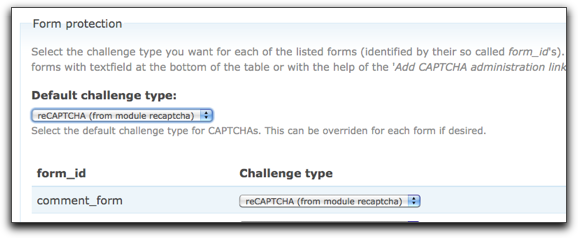
To reduce the possibility of “spam bids” – not that this was a huge concern, but why create extra work for ourselves – I set up the CAPTCHA and reCAPTCHA modules (the latter required setting up a free account at recaptcha.net) so that a CAPTCHA would appear on the form with form_id of comment_form:
Hack the Comment Form
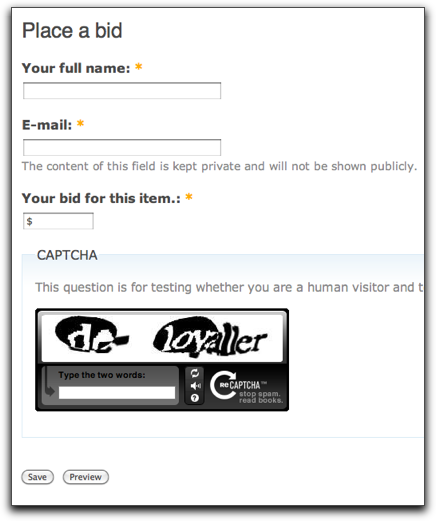
To customize the comment form itself, I created a module called customsite and in it I used the hook_form_alter to change the form:
function customsite_form_comment_form_alter(&$form, &$form_state) {
  unset($form['_author']);
  unset($form['homepage']);

  $form['name'] = array(
    '#type' => 'textfield',
    '#title' => t('Your full name'),
    '#maxlength' => 60,
    '#size' => 30,
    '#default_value' => '',
    '#required' => TRUE,
    );

  $form['comment_filter']['comment'] = array(
    '#type' => 'textfield',
    '#size' => '10',
    '#title' => t('Your bid for this item.'),
    '#default_value' => '$',
    '#required' => TRUE,
  );

    $form['comment_filter']['format'][$i]['#value'] = '';
}
This had the effect of making the comment form look like this:
Create some Views
With the display of items and the handling of bidding completed, my final step was to create a couple of Views to display items and bids.
I created a view with a Page display called auction items that drives this page of the auction website; it displays all of the auction items, sorted by item number, showing the category, donated by, estimated value, and number of bids (which is just the “comment count”).
I also modified the stock node_comments view a little to customize the Recent Bids block that I display in the left-hand sidebar of the site; it shows the 5 most recent bids, with the item name, bid amount and bidding time.
Add Polish
That’s essentially it: a CCK content type holds auction item information; comments become bids. With the addition of some stock Drupal polish – menus pointing to each taxonomy item page to allow browsing by category, for example – the only additional tweak was to create an additional block in the customsite module to show how much we’d raised so far (the total of the high bids for all items):
function customsite_totalraised() {

    $result = db_query("select nid,max(comment) as maxbid
                            from {comments} group by nid");

    $total = '';
    while ($onerow = db_fetch_object($result)) {
        $bid = str_replace("$","",$onerow->maxbid);
        $total = $total + $bid ;
      }
    $block .= "<p>So far we've raised <b>\$" .
                        number_format($total,2) .
                        "</b>. Thank you (and keep bidding!)</p>";

    return $block;
}
Questions or Suggestions?
This solution has worked well over two years, but there’s always room for improvements. If you’d like to try something like this for your own silent auction and run into any stumbling blocks, feel free to ask questions here.
Comments
Thanks for sharing this, Peter. Turning this into a Feature (http://drupal.org/project/feat… would make this really easy to share / implement.
Hi there, I haven’t used Drupal yet, just Wordpress.
I would like to use this information to create online silent auction for the United Way at my sister’s workplace. They use Drupal for their main site. I know I would install a separate site for the auction. Does this work on a free Drupal template and hosting, so i don’t have to bug the IT guys at her work to install it on their server?
Thanks,
Sherry
Hi
Its a very nice post
But have a question in mind , that how could we make expiry date and time with our bid ?
So that if the allowed time is expired , people can’t place bid
Even though this is an older post, looks like someone has a recent question.
I’ll share my thought on one way to do that, Irfan Ahmed;
drupal.org/project/scheduler
This will unpublish the given node (auction item) and therefore end bidding in a site configured properly.
Cheers!
Just found this and set it up for a site. Only prblem was the site is on Drupal 7. That made some thing easy and some harder. First didn’t need all the modules, second you really need one called Comment Goodness. It allows you to chane default order of comments and labels so String Overrides is not needed.
Comment Googness may have issue with some themes that override the core comment templates.
I also didn’t want to use overrides because that changes all comments. This way I can change comments only for the auction item content.
I added a few more fields to my content type, starting bid, estimated value, minimum increment.
The custom module was the fun. Hook name is completely different in Drupal 7. The first thing I check is if it is a comment on an auction item, if not just return. Again, this leaves comments to work normally elsewhere on the site. The variable names are all different in 7, and I compute a default bid for the comment field. The helper function to find a max bid, the SQL is completely different. I also added a validate callback to make sure the bid is valid and above the last plus incr, and a few other checks.
Last created a view to display a page this list all the open auction items, number of bids, time of last bid, title and donated by. Less than a days work, works slick and the end user loves it.
Contact me if you want to see the code
Hi John, I know this comment is quite old, but if you still have the above mentioned code available and would be willing to share I'd appreciate it. I am working on a small auction site for a charity and could use this functionality. I am fairly new to Drupal but have recently taken some training on the subject.
Yes I would like to see the code, John :)
I’m kind of new to hooks and custom modules. Would this require me to create a new module from scratch?
Really appreciate your time.
Hi John,
I’d love to see how you made these changes for Drupal 7. My organization runs a small internal auction every year to raise money for a food drive and we don’t need much more than what this solution provides. I’d especially like to see how you did all of the validation on the comments, as I’ve been trying to figure out how I would ensure that new bids were truly higher than older bids, etc.
Thanks!
Hi John, I’d like to see the code you used for D7. Thanks so much!
Hello John,
I see i'm the very latest but if still available, may I have a copy of the code for D7.
Thanks, it will be much appreciated
Hi, this is a nice informative post. I made an auction site and used your idee of using the comment form as bids and like you mention, the posted comments become bids. I wonder if you had a validation on this bid(comment field). I In drupal 8 the comment form is field able, so easy to adjust it. I am looking to write a validation, that the next bid must be hyer then the last or previous. If someone can help me we this. I am also willing to pay for advice. I try already with a hook_form_alter, validation constraint... No I concentrate to achieve this in TWIG.
 I am
I am  You can subscribe to an